Two Monitors Are Quietly Rotating Your Neck 8 Hours a Day
Quick Answer: In most dual-monitor setups the primary screen is off to one side, so your neck sits in 10-20 degrees of sustained rotation for the whole workday. Fix it by putting the screen you use most directly in front of you and angling the secondary screen inward - not by splitting the difference between two screens, which is the most common and worst arrangement.
The second monitor was an unambiguous productivity win. Nobody goes back.
What came with it was a small, constant neck rotation you have never consciously noticed, held for six to eight hours a day, five days a week.
That is not a dramatic injury mechanism. It is a slow one, and it is the reason a lot of remote workers develop one-sided neck and shoulder tension in the second year rather than the first.

What is actually happening to your neck?
Sustained low-load postures are different from high-load ones. Nothing is being strained in the moment - the issue is duration.
Holding your head rotated even 10-15 degrees requires continuous low-level activity from the muscles on one side of your neck, particularly the upper trapezius and levator scapulae. Those muscles are built for that, for a while.
Over a full workday they accumulate fatigue without ever signaling it clearly, because the load is well below the threshold that produces obvious discomfort. The signal arrives at 6pm, or in month eight.
The asymmetry is the tell. Neck tension that is clearly worse on one side, in someone who works at two screens, is very often a monitor placement problem rather than a sleeping position or a stress problem.
Why is the split-the-difference layout the worst option?
Because it puts you in rotation for 100% of the day instead of some of it.
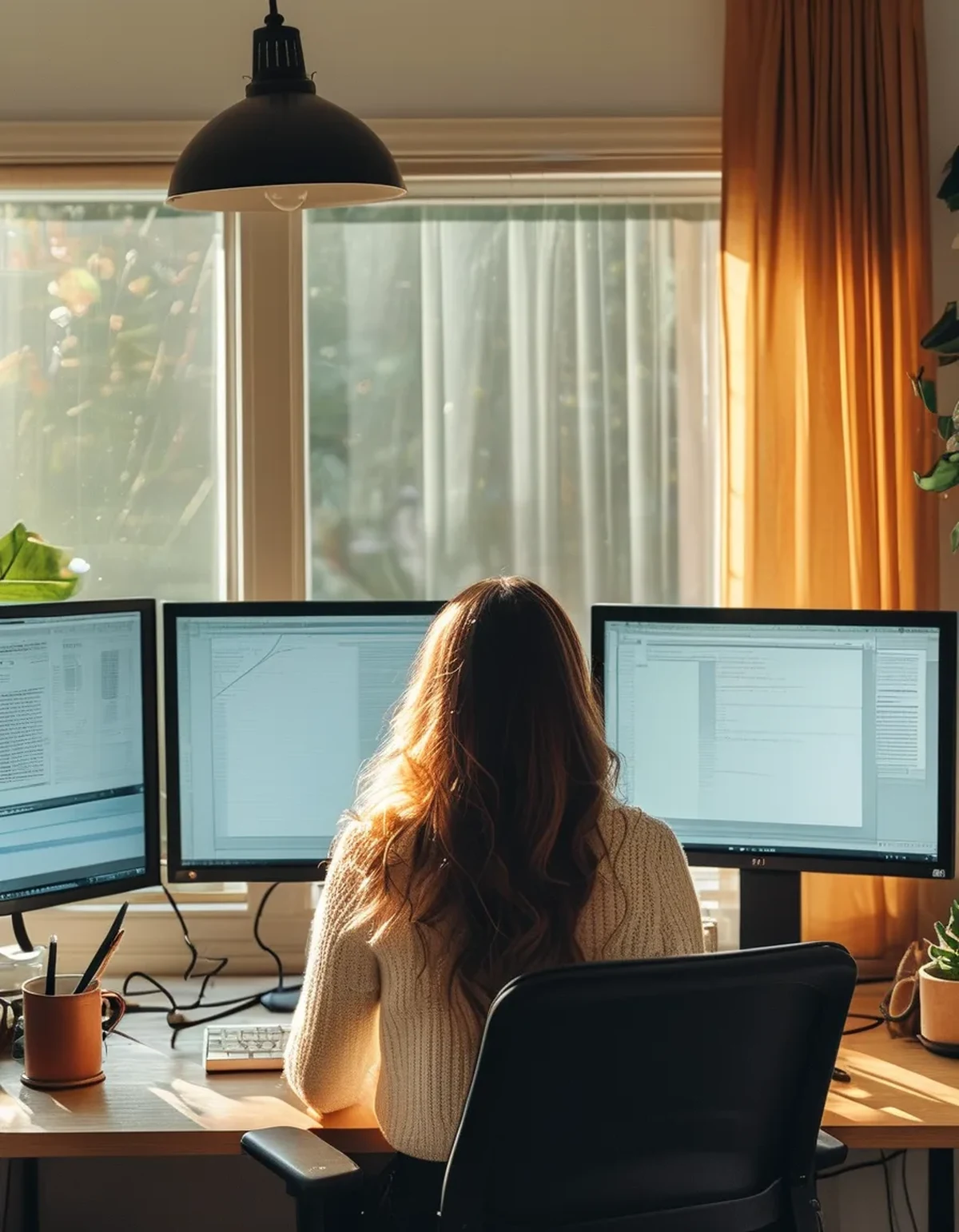
Many people center themselves between two monitors, so both screens are at roughly 15 degrees to either side. It feels fair and symmetrical. In practice, you use one screen 80% of the time - and now you are rotated for that entire 80%, with the compensation of rotating the other way for the remaining 20%.
The better arrangement is asymmetric on purpose:
- Primary screen dead center, directly in front of your body and your keyboard
- Secondary screen angled in from one side, positioned for glancing rather than working
- Sit square to the primary, not to the midpoint
That gives you zero rotation for 80% of the day and honest rotation for 20% - which is far better than mild rotation for all of it.
How should the two screens actually be positioned?
Specifics, in order of importance:
- Primary directly ahead, top of the screen at or just below eye level, about an arm’s length away (20-30 inches).
- Secondary angled inward at roughly 30 degrees, forming a shallow arc rather than a flat line. A flat line forces more rotation than an angled one for the same screen position.
- Matched heights. A secondary screen that is 4 inches lower produces a repeated head tilt on top of the rotation. Use a stand or books.
- Same distance. Different distances mean your eyes refocus on every glance, which contributes to eye strain and to leaning.
- Keyboard aligned with the primary screen, not with the midpoint between screens. This is the one that gets missed most - your torso follows your hands.
If your work is genuinely split evenly between two screens, the better answer is usually one large ultrawide rather than two displays.
5 Mistakes Everyone Makes With Two Screens
1. Aligning the chair with the desk instead of the primary screen. Your body should square to what you look at, not to the furniture.
2. Putting the laptop off to the side as the second screen. It is lower and smaller, so it adds a downward tilt to the rotation. Raise it on a stand or accept it as a glance-only screen for notifications.
3. Keeping the video call window on the side screen. You spend calls rotated and looking away from the camera. Calls belong on the primary.
4. Never switching which side the secondary is on. If your work genuinely uses both, swapping sides every few months distributes the load rather than concentrating it.
5. Fixing the monitors and ignoring the mouse. A mouse far to one side pulls your shoulder into protraction all day, which feeds the same tension pattern from below.
What habits go with the layout fix?
Layout is most of it. Two habits handle the rest:
- The 20-minute reset. Once every 20 minutes or so, square your shoulders to the primary screen and do a slow neck rotation to each side, holding five seconds at the end range. It takes fifteen seconds and it interrupts the accumulation.
- Move the secondary window. If you catch yourself working - not glancing - on the side screen for more than a few minutes, drag that window to the primary. The fix is behavioral, and it only works if you notice.
Worth adding: a chin tuck, 10 reps twice a day, directly counters the forward head posture that stacks on top of rotation. Draw your chin straight back, hold two seconds, release.
This is general information, not medical advice. Neck pain with numbness, tingling, or arm weakness needs a professional assessment rather than a monitor adjustment.
FAQ: Dual Monitor Neck Questions, Answered
Is a single ultrawide actually better?
For evenly split work, usually yes - it removes the bezel gap that forces a discrete head turn. For work with one clear primary task, two screens with correct placement is fine and often more practical.
Does a monitor arm help?
Significantly, because it makes correct positioning easy rather than a one-time struggle with a stand that does not adjust. The height and distance flexibility is worth more than the desk space it frees.
Should the secondary be vertical?
It works well for reading documents and code, and it has a hidden ergonomic benefit - a vertical screen is narrower, so it requires less horizontal eye and head travel than a wide one in the same position.
TL;DR:
- Dual monitors typically hold your neck in 10-20 degrees of rotation for most of the workday.
- Centering between two screens is the worst layout - it puts you in rotation 100% of the time.
- Put the screen you use 80% of the time directly in front of you and angle the second one in at about 30 degrees.
- Match heights and distances, and align your keyboard with the primary screen, not the midpoint.
- Add a 15-second reset every 20 minutes and move any window you are working in onto the primary.
One-sided neck tension in a remote worker is usually a furniture arrangement, not a mystery. Moving one monitor takes two minutes and removes a load you have been carrying for eight hours a day without knowing it.
Keep Reading
This article is for general informational and styling purposes only. Fit, sizing, and product availability may vary.